

Smart Voice Bell is used to play pre-recorded voice announcement at a pre-programmed time. It is an all-electronic, digital timer with no external mechanical switches/buttons or controls. The Smart voice Bell timer can be accessed and configured/controlled from any smart phone or PC over its own wireless network (no WIFI connection required). Unlike any other School voice Bell timers in the market, this smart voice bell timer is secured with a unique password to prevent accidental or intentional unauthorized access. The smart voice bell features a user-friendly intuitive menu driven interface.
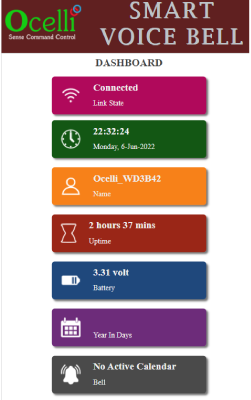
The smart voice bell timer has three distinctive display sections: 1. Primarily info-only display section (above the horizontal tab), 2. Smart voice bell control Tabs (horizontal tab) 3. Smart voice bell settings control section (below the horizontal tab).
The smart voice bell can be accessed using a PC, Tablet, Mobile or any other device with access to a web browser using an inbuilt WIFI. You do not need an external WIFI connection or a data plan on your mobile to connect, program and control the smart voice bell timer. Settings such as device name (SSID), password, time zone can be changed as per user preference.
Info section (as shown below) displays the WIFI status, Current date and time, Name (SSID) of the device, Up time since the last power up, Real Time Clock time, battery voltage, The duration of the programmed calendar (the number of days in the year that the program covers) and the time at which the next voice will play in a given day unless it is a holiday. If it is a holiday, next bell shows it as a holiday. These settings are updated once in every 30 seconds. Date and time may not be correct when the device is powered up for the first time but will reflect the correct value after the first setup procedure. Date and Time is automatically updated whenever any settings of the device are changed. That means, there is no user action is needed to update the date or the time and these get updated along with other settings based on the phone or Tabs date and time automatically.
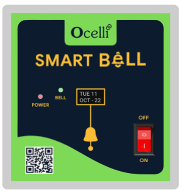
Smart voice bell has two types of display: 1. LED display – RED LED in the front panel indicates the presence of power to the voice bell. 2. OLED display – Front panel mounted 0.96” OLED displays the current date (in YYYY/MM/DD format in the first line), current time (in 24-hour format in the second line) and next bell (in Active schedule/next bell format in the third line. In addition, it will also display when the smart bell is playing the audio message.
Schedules Tab
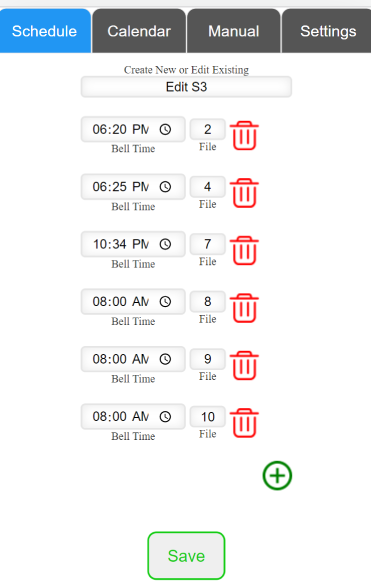
A schedule is a set of pre-recorded voice announcements that are user defined and the following parameters are available to the user to program
3.2.1 Time at which the voice announcement has to be made. Maximum of 32 different timing can be programmed.
3.2.2 Numerical prefix of the pre-recorded announcement to be played as displayed in the drop-down list.
3.2.3 Six distinct schedules available with the above capabilities. Any day of the calendar can be assigned with any one of this six schedule. The seventh option is for the weekly holiday. One can designate any day as a weekly holiday or a special holiday
3.2.4 A holiday option (not the weekly holiday) can also be used to designate any day of the week as a holiday and can be used as often as needed without any limits
So, in essence the customer can program the smart voice bell to play voice announcement up to 32 distinct times a day and have a choice of six different schedules. So any given day can be programmed with any one of these six schedule and can designate any given day as a holiday without any restriction.
Calendar Tab
The calendar is very flexible. You can program for a day or a week or a month or even an entire year at one go. There is no restriction what schedule to use on any given day you can designate any day as a holiday or a weekend without any restriction for the whole year in one go, no individual programming is required
Manual Tab
This tab has controls to operate the voice bell in manual mode from the mobile phone or PC as well as volume of the voice announcements in all modes.
3.4.1 In this mode, user can manually select the audio file to be played. The drop-down list will automatically be populated based on the number of files present in the USB drive. Please make sure that the USB drive has only one MP3 folder and no other folder. Otherwise, the drop-down list will be populated based on the files in the other folder as well. Once a file is selected, the smart voice bell will turn ON the relay first and then play the selected file after about 45 seconds to let the connected amplifier to power up and stabilize. There will be approximately about 45secs delay from the selection of file to start of voice announcement.
3.4.2 This tab also has the control to adjust the volume of the voice bell timer. Volume can be controlled from a scale of 0 to 30. It is advisable to keep volume above 14. Please note that this control affects the volume in all modes of operation.
Smart voice bell timer supports up to Six different schedules, a holiday option and a manual mode catering to diverse user needs. It can also be programmed for the whole year once globally including regular school day, half day and weekly holiday. The following section describes each mode and its operation. Furthermore, each mode of operation is persistent which means that the smart voice bell retains its settings across power cycling. To save the program, no battery is needed.
Programming the smart voice bell
The following explains in detail how to program each of the different parameters of the smart voice bell
Connecting to the Timer
4.1.1. Note down the Device (SSID) name and password of the smart voice bell. These are printed on a sticker and attached to the device. Please save this sticker in a safe place as you would need it connect to the smart bell in the future.
4.1.2 Install the smart voice bell and power it up
4.1.3 Using your mobile phone or PC look for the smart voice bell WIFI signal and then connect to it using the password. It is the same procedure used to connect to any WIFI signal
4.1.4 Open the web browser app (chrome, Firefox, etc.) and type 192.164.4.1 in the web address section
4.1.5 The web address will load up the start page of the smart voice bell
Programming a Schedule
Follow the instruction on your Mobile or PC
4.2.1 Log on to the smart voice bell on your phone or PC after selecting the smart voice bell WIFI signal and using the password as shown on the box
4.2.2 On the Phone or PC and underneath the dashboard you will see the following tabs Schedule, Calendar, Manual and Settings. Select Schedule
4.2.3 Under the tabs you will see a bar which has Edit S1 (it could be showing any one of these S1, S2….S6 after Edit)
4.2.4 Pick a Schedule in our case let it be S1. You can pick any from the drop-down menu that appears when you touch the Bar
4.2.5 Using drop down menus you can select the time when you want the voice bell to play and the file to be played. File selection drop down list automatically populates the list based on the number of files in the USB drive.
4.2.6 To add the next time you want the bell to ring hit the + sign under the first schedule and it will display a second line for you need to complete the information for the second bell
4.2.7 You can repeat 4.2.5 and 4.2.6 and program all 32 distinct bells for any given schedule
4.2.8 You can repeat 4.2.4 thru 4.2.7 and program up to a maximum of six independent schedules
Programming the Calendar
To program the calendar, follow the instruction below
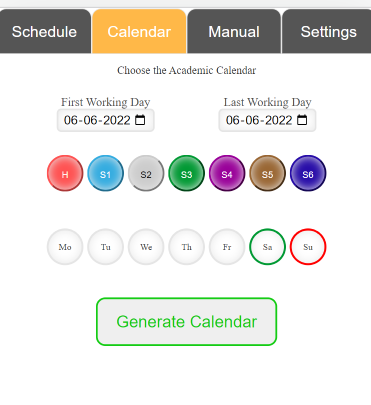
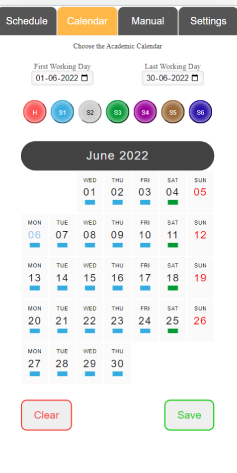
4.3.1 On the main menu touch the calendar tab
4.3.2 Set the date of the first working day on the first working tab using the drop-down calendar that shows up
4.3.3 Set the date of the last working day on the Last working tab using the drop-down calendar that shows up
4.3.4 Select the schedules from S2-S6 (any of them) for each working day. Ex. You can select S3 (by touching the dark green circle and then touching any of the week days Mon through Sun. Every day you have touched, the bell will ring according to Schedule S3, or you can select S1 on Monday S2 on Tuesday etc. and use all the available schedules if you so desire. By default, S1 will be assigned to each day if no other schedule is assigned. That means, user need not select assign S1 to any day as it is default. If nothing else is assigned for a particular day, S1 will be assigned. Also, any schedule with no assigned bell timing will be in Grey color and won’t be able to assign to a day. Using the Red button H, touch the day you want the weekly holiday to be. You can choose any day of the week as weekly holiday.
4.3.5 Press the generate button and the calendar is generated with all the schedules and weekly holidays programmed
4.3.6 Now that you have generated the calendar Hit the save button so the calendar is saved
4.3.7 You can navigate thru the calendar by using the left & right arrow at the top of the Calendar month display
4.3.8 You can program the individual holidays by going to the month the holiday is in and hitting the Red button H and the holiday date. You will visually see the tab at the bottom of the date disappear and turn the date RED. You can also individually change any day to a different schedule (Manually) and once you have done that hit the Save Button.
Programming the Calendar
To program the calendar, follow the instruction below
4.3.1 On the main menu touch the calendar tab
4.3.2 Set the date of the first working day on the first working tab using the drop-down calendar that shows up
4.3.3 Set the date of the last working day on the Last working tab using the drop-down calendar that shows up
4.3.4 Select the schedules from S2-S6 (any of them) for each working day. Ex. You can select S3 (by touching the dark green circle and then touching any of the week days Mon through Sun. Every day you have touched, the bell will ring according to Schedule S3, or you can select S1 on Monday S2 on Tuesday etc. and use all the available schedules if you so desire. By default, S1 will be assigned to each day if no other schedule is assigned. That means, user need not select assign S1 to any day as it is default. If nothing else is assigned for a particular day, S1 will be assigned. Also, any schedule with no assigned bell timing will be in Grey color and won’t be able to assign to a day. Using the Red button H, touch the day you want the weekly holiday to be. You can choose any day of the week as weekly holiday.
4.3.5 Press the generate button and the calendar is generated with all the schedules and weekly holidays programmed
4.3.6 Now that you have generated the calendar Hit the save button so the calendar is saved
4.3.7 You can navigate thru the calendar by using the left & right arrow at the top of the Calendar month display
4.3.8 You can program the individual holidays by going to the month the holiday is in and hitting the Red button H and the holiday date. You will visually see the tab at the bottom of the date disappear and turn the date RED. You can also individually change any day to a different schedule (Manually) and once you have done that hit the Save Button.
Manual Mode
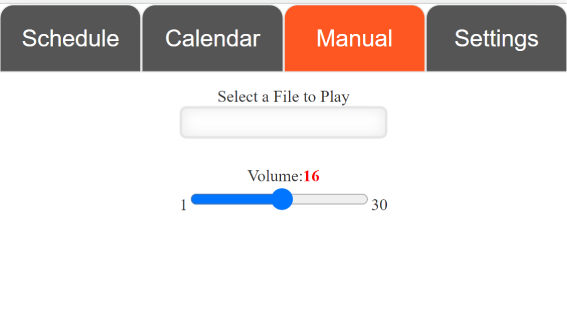
In this mode, any one of the pre-recorded voice can be played by the user as and when needed. The drop-down list will be automatically populated based on the number of files present in the USB drive. Please make sure that the USB has only MP3 folder and no other folder or audio files in the USB drive. Otherwise, the drop-down list will be populated based on the files in the other folders as well. Once a file is selected, the smart voice bell will turn on the relay first and then play the selected file after about 45 seconds to let the connected amplifier to power up and stabilize. This tab also has the control to adjust the volume of the voice bell timer. Volume can be controlled from a scale of 0 to 30. It is advisable to keep volume above 16. Please note that this control affects the volume in all modes of operation.
Settings Tab
To access the smart voice bell and change the username or the password
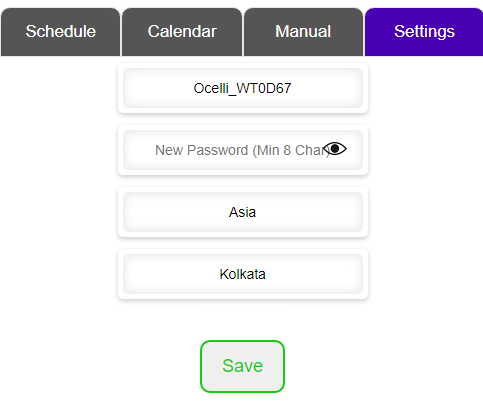
4.5.1 On the main menu touch the settings tab
4.5.2 The display shows the 4 lines, Device SSID, Password, Location, continent and the country (major city)
4.5.3 You can change any of these by just typing over the SSID and password, the continent and city can be selected using the drop-down menu
4.5.4 Hit the save button a new window opens up where you have to put in the old password and hit save again which will save the new SSID and password and the location information
4.5.5 With this, the device will have a new SSID and the factory SSID will no longer be available and you will be logged off from your mobile or PC after 4.5.4
4.5.6 You need to log into the smart voice bell using the new SSID from now on as the factory issued SSID will no longer show up as one of the WIFI signal choices when you log on to the smart voice bell
4.5.6 If for some reason you lose your user name and password you can reset it to factory setting by long pressing push button provided on top and this will reset the smart voice bell to factory settings.
Specification
Parameter | Value |
Supply Voltage | System supply voltage 12VDC. Adapter provided. Relay Contact Rating 220V+/-10% @50/60Hz |
Power Consumption | <1W |
Clock Accuracy | ±2 sec/day |
Real Time Clock battery backup | 2 years |
Relay Output | 1 N/O with 10A contact rating |
Operating Temperature | -10oC to 55oC |
Humidity Non Condensing) | 85% (RH) |
Load Status Indication | OLED indication App – ICON and text status |
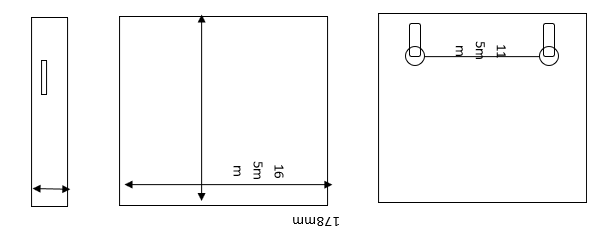
Dimension | 165x178x65mm |
School Bell,
Any other application that needs pre-recorded voice announcements at predefined schedule
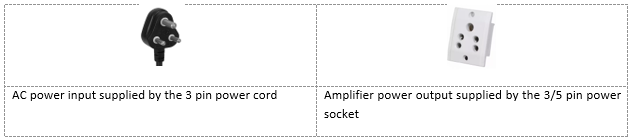
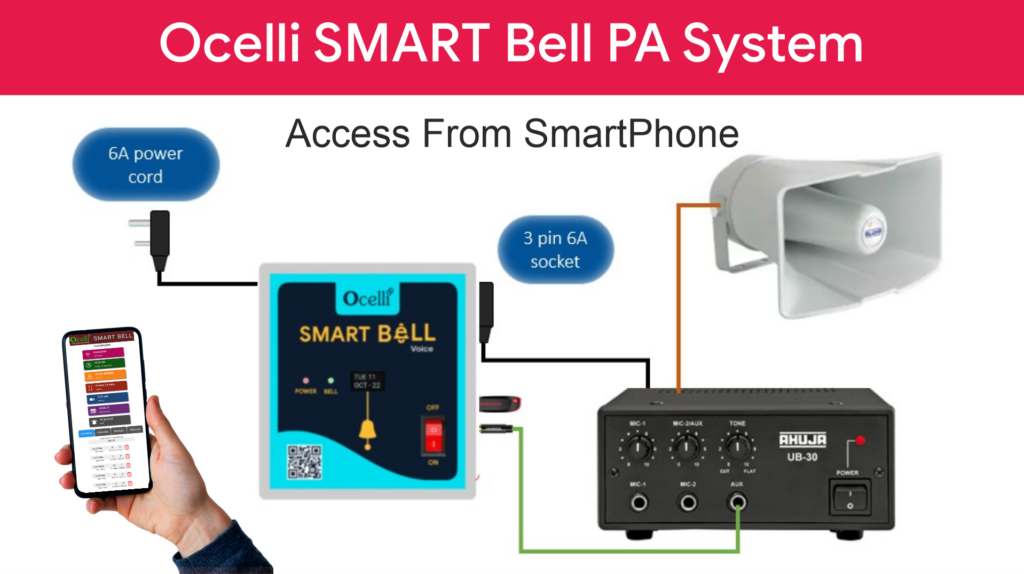
Power to the smart voice bell is supplied by the 3 pin power cord provided on the left side of the bell. This supplies power to the internal circuitry as well as external amplifier if required. The power to the amplifier is supplied from the 3/5-pin power socket provided on the right side of the voice bell. This is a switched powered output which means that the bell supplies power to the amplifier only when needed and turns off otherwise. Voice bell supplies power to the amplifier about 45 seconds before playing pre-recorded voice and turns off after playing the voice. This conserves power as well as extends the life of the amplifier.
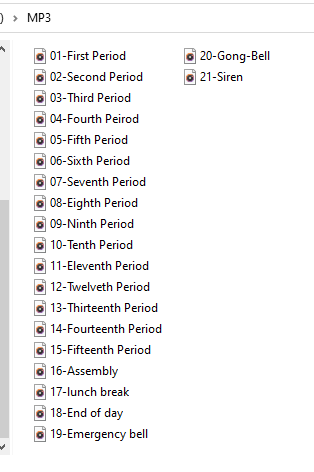
Recommended USB drive format is shown below. The USB drive should have folder with the name “MP3” in its root directory. All the audio tracks should be copied under the MP3 folder. Each file name should have numerical prefix as shown below. After the numbers, it can have additional names to make it easily identifiable. Numerical prefix used in the filename is one referenced during the bell programming. Please avoid using prefix with all zeros.
TWELVE MONTHS warranty.
Legal Information:
The limited warranty period starts from the day the customer receives the product. Warranty of the product is limited to the manufacturing defects only and does not cover incorrect or improper usage. During the warranty period, we will replace or repair of the product if there is any manufacturing defect. To claim the warranty, the product has to be sent back to us. We may perform inspection or test to ascertain the causes of failures/defects, before replacing the unit.
Explore the transformative capabilities of automation with Ocelli’s all-encompassing services. Streamline operations, increase scalability, and drive growth with our tailored solutions designed to optimize your business processes.