

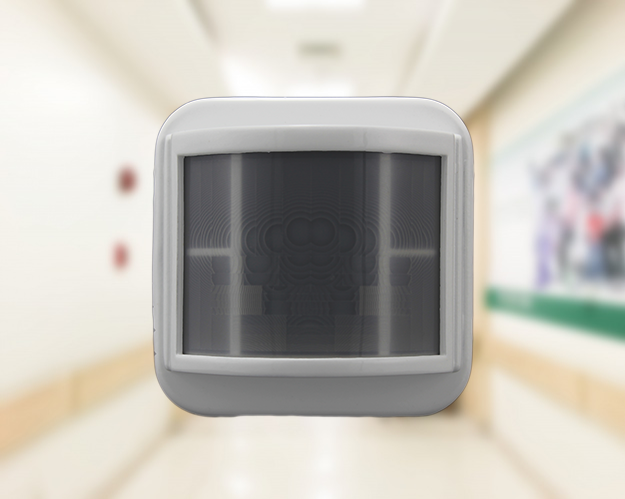
Corridor Sensor

Solid Build Quality

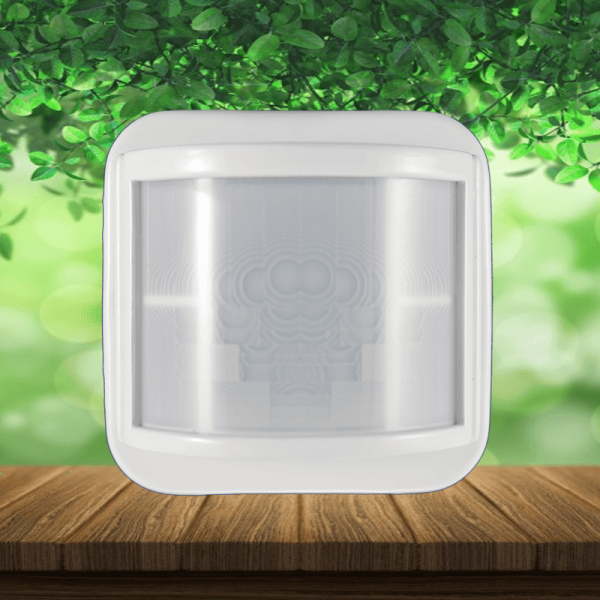
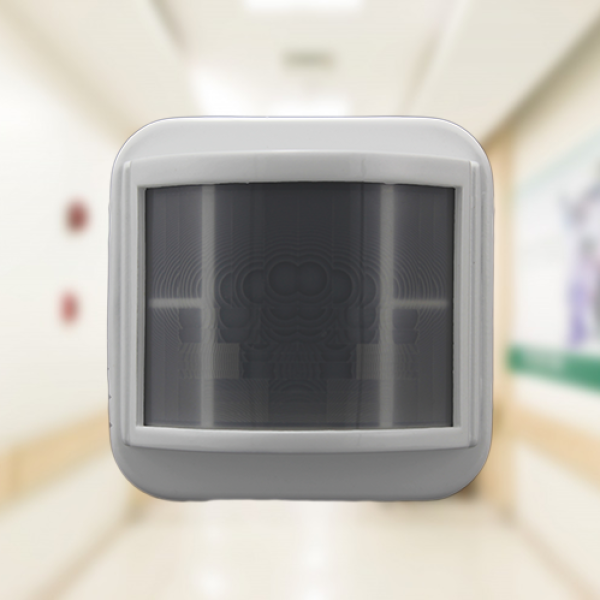
The Occupancy sensor operates by detecting infrared radiation emitted by humans. When an occupant enters the field of view of the Fresnel lens in front of the IR sensor, the sensor detects a change in received energy, signaling occupancy and automatically switching on the lights. As long as movement is detected, the lights remain on. After a preset delay, if no movement is detected, the sensor turns off the lights. The light sensor maintains illumination at a preset level as long as movement is detected by the occupancy sensor. Continuously measuring light levels in the room, including artificial and natural light, the sensor adjusts artificial fixtures to maintain preset levels based on the combination of light sources and human presence.

Features
  • High Strength Material: Our product is built using durable materials, ensuring reliability and longevity, capable of withstanding various environmental conditions.

  • Elegant Aesthetics Design: Designed with sophistication in mind, our product seamlessly integrates into any space, enhancing its visual appeal while providing practical functionality.

  • Drive: Utilizing relay technology, our product ensures seamless operation and reliability, allowing for efficient control of lighting systems.

  • Coverage Area: With a wide coverage area of 92 feet, our product provides ample lighting for various indoor or outdoor spaces, meeting diverse needs effectively.

  • Install Height: Designed to be installed at a height of 6.8 feet, our product optimizes its range and effectiveness, delivering optimal lighting performance throughout its coverage area.
Model

Premium

It detects your single minor movement

It detects your single minor movement
Sensitivity
This setting controls the minimum amount of movement required for the sensor to detect whether a given area is occupied (human movement is used for detection) and turn ON the lights. Sensors are shipped with this setting set to the most sensitive position. The customer can manually change this setting on the sensor using a remote control unit.
Setting Storage
When a remote control is used to change any setting, the setting is automatically saved into the sensors permanent memory. This helps the sensor to retain the setting even after a power loss The setting can be overridden by entering the override mode on the remote control there by reverting back to hardware based settings..
Lux
The Lux Level setting of the sensor controls the switching ON and OFF or dimming level of artificial lighting. The customer can manually change this setting on the sensor using a remote control unit.
Visual Cue
Sensors provide visual cue during configuration of settings. The RGB LED light up in different colors depending on the current value of the setting being changed.
Time Delay
This is the duration that the sensor maintains the lights (or any other load connected to it) in the ON condition after the last occupancy is detected. Sensors are shipped with this parameter set at 5 min. The customer can manually change this setting using a remote control from 30sec to 30min.
Presentation Mode
This feature is useful during presentations using a projector to temporarily override the ambient light sensor based brightness control. After the presentation is over and once the room is vacated as indicated by the time delay sensor, the sensor reverts back to normal mode and start controlling the light based on the ambient light sensor. This feature is only applicable for dimmable sensors and when used in conjunction with a dimmable ballast.
Remote Control
Sensors can be remotely controlled by an Infrared (IR) remote control. This enables better control of the sensor�s parameters during installation. Sensor provides a visual cue to indicate the setting being changed and also value of the settings.
On-Demand Mode
This mode is used to provide on-demand lighting. User can select three different mode of the sensor. ‘Always OFF’ mode indicated by red color LED indication; ‘Always ON’ mode indicated by green color LED indication; ‘Auto’ mode indicated by yellow color LED indication
Previous slide
Next slide
Please enable JavaScript in your browser to complete this form.
Name